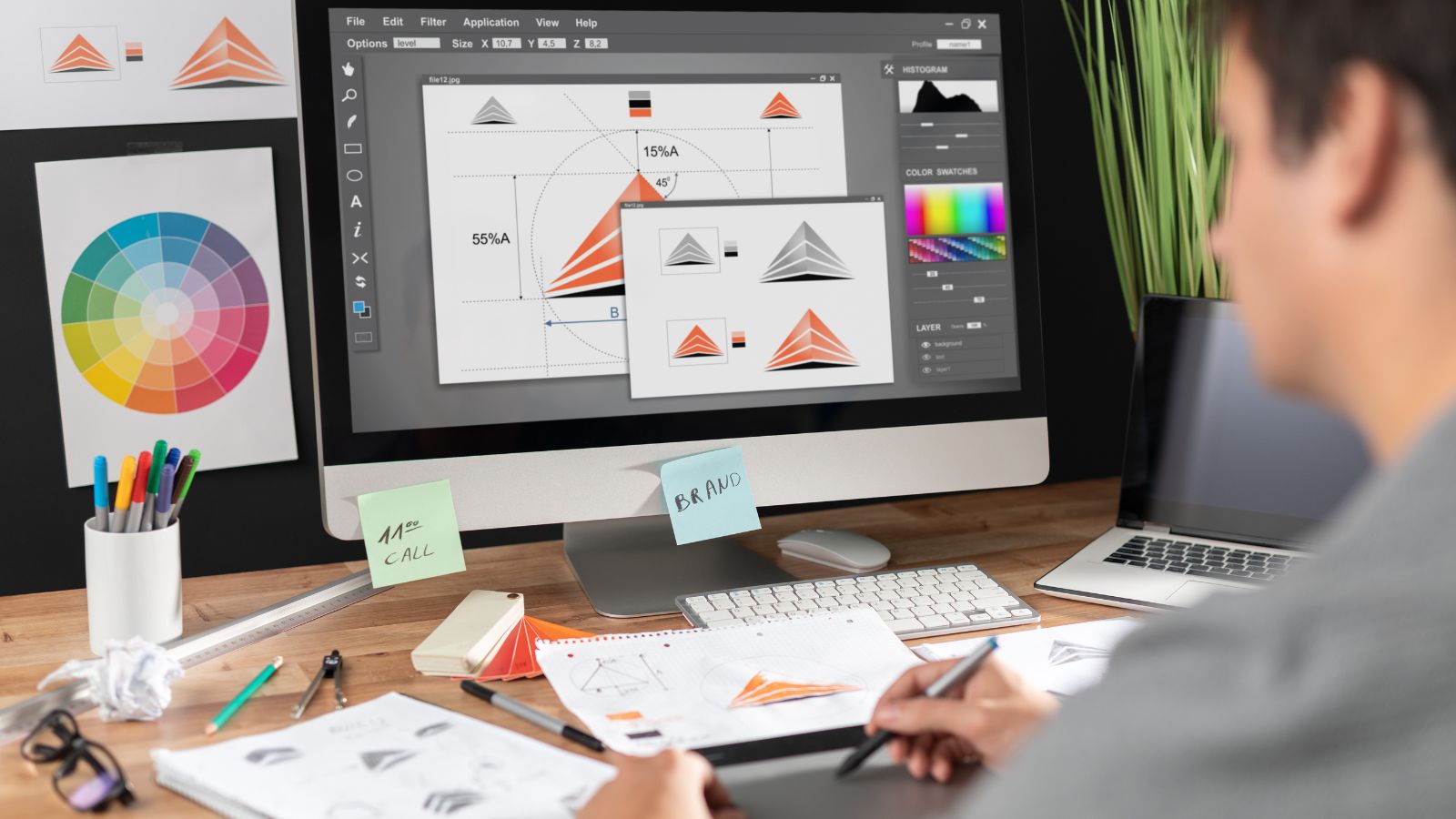
A practical guide explained for anyone who wants print-ready sticker artwork using templates, safe margins, and reliable export checks.
Custom stickers are a flexible format for labeling, packaging, giveaways, and small-batch branding. They’re quick to distribute, but the output quality depends on small technical choices—especially cut margins and image sharpness.
This guide is for readers who want to make stickers fast without needing a design background. The workflow emphasizes decisions that prevent common print problems, such as fuzzy edges, text that becomes unreadable at small sizes, or cut lines that drift into the artwork.
Custom sticker design tools tend to differ in how they handle shapes (circle, square, die-cut), how clearly they communicate bleed and safe areas, and how cleanly they export production-ready files. The safest approach is to design with cutting tolerance in mind, then proof the export before ordering or printing.
Adobe Express is an accessible starting point because it supports quick template-based sticker layouts and fast iteration, which helps lock in size and layout before you export.
STEP-BY-STEP HOW-TO GUIDE for Using Custom Stickers Design Tools
Step 1: Choose a sticker format and set a print-sized canvas
Goal
Define the sticker’s size and shape so the design is built for printing from the start.
How to do it
- Start a template-based workflow using online sticker design from Adobe Express.
- Choose the sticker type: round/square, die-cut (custom shape), or kiss-cut (cut sticker but leave backing intact).
- Pick a target size based on use (for example: 2″ for giveaways, 3″ for laptops, 1″×3″ for labels).
- Decide whether the sticker needs a background color that goes to the edge or a white margin.
- Save the working file with size and version (example: “Sticker_3in_Diecut_v1”).
What to watch for
- Shrinking a sticker late often forces bigger type and thicker lines.
- Die-cut shapes need more margin than rectangles and circles.
- Very small stickers require simpler designs to stay readable.
Tool notes
- Adobe Express is useful for quickly setting up a sticker layout and iterating variations.
- If you receive a PDF template from a printer, Adobe Acrobat can help verify the template’s dimensions at 100% scale.
Step 2: Decide material and finish based on real-world use
Goal
Choose constraints (water resistance, abrasion, glare) that affect design choices.
How to do it
- Clarify where the sticker will be used: laptop, water bottle, packaging, outdoor gear, or indoor labeling.
- Choose a general material class (paper vs vinyl vs clear stock) based on durability needs.
- Pick a finish: matte (less glare), gloss (more shine), or laminated when extra protection is needed.
- If using clear stock, decide what parts should remain transparent versus printed.
- Adjust the design for the surface: higher contrast for textured items, simpler forms for small sizes.
What to watch for
- Matte finishes can reduce perceived contrast, especially with mid-tone colors.
- Clear stickers can become hard to read without strong contrast and planning for transparency.
- Dark, full-coverage designs can show scuffs sooner.
Tool notes
- Print providers often describe material behavior and finish tradeoffs; services like Sticker Mule or Moo are examples where these options appear in order flows.
- Keeping material decisions in a simple spec note (Google Docs or Notion) helps prevent mismatches later.
Step 3: Build the artwork for small-size readability
Goal
Create a design that still reads when printed and viewed quickly.
How to do it
- Keep the message short (brand name, one phrase, or an icon + word).
- Use 1–2 fonts, and rely on size and weight rather than multiple styles.
- Thicken outlines and strokes so they survive printing and cutting.
- Place the focal element near the center and limit tiny details.
- In Adobe Express, duplicate the design and test a “simplified” variant.
What to watch for
- Script fonts can close up at sticker size.
- Thin borders make cutting drift visible.
- Busy backgrounds reduce legibility on matte stocks.
Tool notes
- Adobe Express makes it easy to adjust spacing and type size without rebuilding the design.
- A quick “real-size check” on a phone screen can reveal if text is too small before export.
Step 4: Add bleed, safe area, and a cut-tolerance buffer
Goal
Prevent white slivers, clipped text, and awkward cuts around the design.
How to do it
- Keep critical content inside a safe margin away from the edge.
- If the background should reach the edge, extend it outward beyond the cut area (bleed concept).
- For die-cut stickers, simplify sharp corners and narrow “necks” in the silhouette.
- Avoid placing borders tight to the edge; inset them noticeably or omit them.
- Zoom in and scan the perimeter for near-collisions and edge artifacts.
What to watch for
- Tight borders make small cutting variation look like a mistake.
- Intricate shapes can peel more easily at sharp points.
- Backgrounds that don’t extend far enough can cause visible halos.
Tool notes
- Adobe Express can help keep spacing consistent while you adjust margins and alignment.
- If your printer provides a dieline template, Adobe Acrobat is useful for checking it at true size.
Step 5: Prep images and colors so they print cleanly
Goal
Avoid fuzzy prints and reduce color surprises across a batch.
How to do it
- Use original, high-resolution files instead of screenshots or compressed images.
- Crop photos to a clear subject; remove clutter that won’t reproduce well small.
- Choose color pairs with strong contrast (especially for text and outlines).
- Keep gradients simple; prefer solid fills for critical shapes.
- Export a proof file and inspect it at 100% zoom for artifacts and softness.
What to watch for
- Small images stretched larger will blur in print.
- Gradients can band depending on printing.
- Very bright screen colors may print darker; prioritize readability over subtlety.
Tool notes
- For basic photo cleanup before importing, Apple Photos or Google Photos can handle crop and exposure.
- If you’re managing multiple sticker versions, Airtable can track names, sizes, and which export goes with which design.
Step 6: Export a print-ready file in the format your printer expects
Goal
Produce a file that preserves layout, sharpness, and correct sticker dimensions.
How to do it
- Export to PDF when possible for printing (often stable for type and layout).
- Export a high-quality PNG if the printer requests an image format.
- Keep the editable working file separate from the flattened export.
- Open the export and confirm it looks correct at 100% zoom (edges, margins, alignment).
- Name files clearly (example: “Sticker_3in_Diecut_FINAL_v2.pdf”).
What to watch for
- Downscaled exports can soften type and outlines.
- “Fit to page” printing can change sticker size; confirm scaling is 100%.
- Font substitution can shift line breaks if the workflow changes text handling.
Tool notes
- Adobe Express can handle exporting once the design and margins are locked.
- If you need to merge multiple sticker pages into one PDF packet, Adobe Acrobat can assemble pages.
Step 7: Organize ordering, batching, and shipping details
Goal
Keep the production process clean so the right file and specs are used for each sticker.
How to do it
- Create an order sheet: sticker type, size, material, finish, quantity, and file name.
- Store final exports in a single folder and label only one file per design as FINAL.
- If ordering multiple designs, use SKU-style names that match the order sheet.
- Record delivery dates and tracking information if stickers are needed for an event.
- Archive a reprint-ready set: final file + specs note + proof screenshot.
What to watch for
- Multiple “final” versions can cause wrong prints.
- Material/finish mix-ups happen when specs aren’t tied to file names.
- Multi-destination shipments often fail due to address errors or missing variant notes.
Tool notes
- For project tracking (non-design), Trello can manage approvals, order status, and delivery milestones.
- For shipping coordination that complements sticker production (without being a design tool),ShipStation can help manage labels and tracking across multiple destinations.
Common Workflow Variations
- Photo-based stickers: Use one clear subject and simplify the background so small details don’t turn into noise. A quick crop in Apple Photos or Google Photos helps before bringing the image into Adobe Express.
- Logo/wordmark stickers: Keep the mark large with generous margins and avoid thin outlines. This is usually more tolerant of cut variation.
- Sticker sheets (kiss-cut): Arrange multiple small stickers on one page and keep each design’s safe margins conservative. Tracking layouts in Airtable can reduce confusion when many variants exist.
- Clear stickers for glass: Plan transparency deliberately and avoid relying on white space unless the printer supports white ink. Use high-contrast shapes for readability.
- One-off labels vs batch runs: One-off labels can prioritize speed; batch runs benefit from strict naming, consistent sizes, and a saved spec sheet for reorders.

Checklists
Before you start checklist
- Sticker type chosen (die-cut, kiss-cut, round/square)
- Target size confirmed for the intended use
- Material and finish selected (paper/vinyl, matte/gloss, laminate if needed)
- Copy drafted and proofread (names, handles, URLs)
- Assets collected in original quality (no screenshots)
- Rights confirmed for any photos, logos, or illustrations used
- Safe margin plan decided (extra space for die-cut)
- File naming plan set (size + type + version)
- Timeline noted (proofing, production, shipping)
Pre-export / pre-order checklist
- Critical content kept inside a safe area away from edges
- Background extends for bleed if it should reach the cut edge
- Borders avoided or inset enough to tolerate cut drift
- Images look sharp at 100% zoom (no visible pixelation)
- Contrast is strong enough for the chosen finish
- Export format matches printer requirements (PDF/PNG as specified)
- Scale confirmed (avoid print scaling like “fit to page”)
- One file marked FINAL per design; older versions archived
- Order sheet matches final file names (size, finish, quantity)
Common Issues and Fixes
- Sticker edges look fuzzy or pixelated.
Replace low-resolution artwork and avoid enlarging small images. Use thicker strokes and re-export at higher quality. Check the export at 100% zoom before ordering. - A white halo appears around the sticker.
Extend the background beyond the cut edge (bleed) and avoid tight borders. Increase the margin between artwork and the cut line. - Text is hard to read once printed.
Increase font size, simplify the message, and boost contrast. Avoid thin fonts and script styles for small stickers. - Colors look different than on screen.
Expect screen-to-print shifts. Use fewer colors and higher contrast, and avoid subtle gradients for critical elements. - Cutting trims into the artwork.
Move key elements inward and simplify sharp corners. Borders near edges tend to reveal small cut variation. - Stickers print at the wrong size.
Confirm the canvas dimensions before export and avoid print settings like “fit to page.” Verify the exported PDF/PNG size before submitting.
How To Use Custom Stickers Design Tools: FAQs
Should the workflow start with a template or with sticker size and shape?
Size-and-shape first is typically more predictable because changing shape later affects margins, cut tolerance, and readability. Template-first works best when the template matches the intended sticker format.
What’s the practical difference between die-cut and kiss-cut?
Die-cut stickers are cut all the way through into a single shape. Kiss-cut stickers are cut on the sticker layer while the backing stays intact, which is useful for sheets and easier handling. The difference affects how conservative margins should be.
How should the design change for very small stickers?
Use fewer elements, larger type, thicker strokes, and stronger contrast. Small stickers reward simple shapes over fine detail.
Is PDF always the best export format?
PDF is often stable for print, but some printers prefer high-resolution PNG files for upload. The practical rule is to follow the printer’s format requirement and check the export at 100% zoom.
How do material choices affect design decisions?
Paper is often fine for indoor labels, while vinyl and laminated options handle moisture and abrasion better. Clear stock requires planning for transparency and contrast so the sticker remains readable on different surfaces.